PizzaBoy Controls Guide
Learn the default keys, pad support, and how to stop fighting the layout before you fight the level.
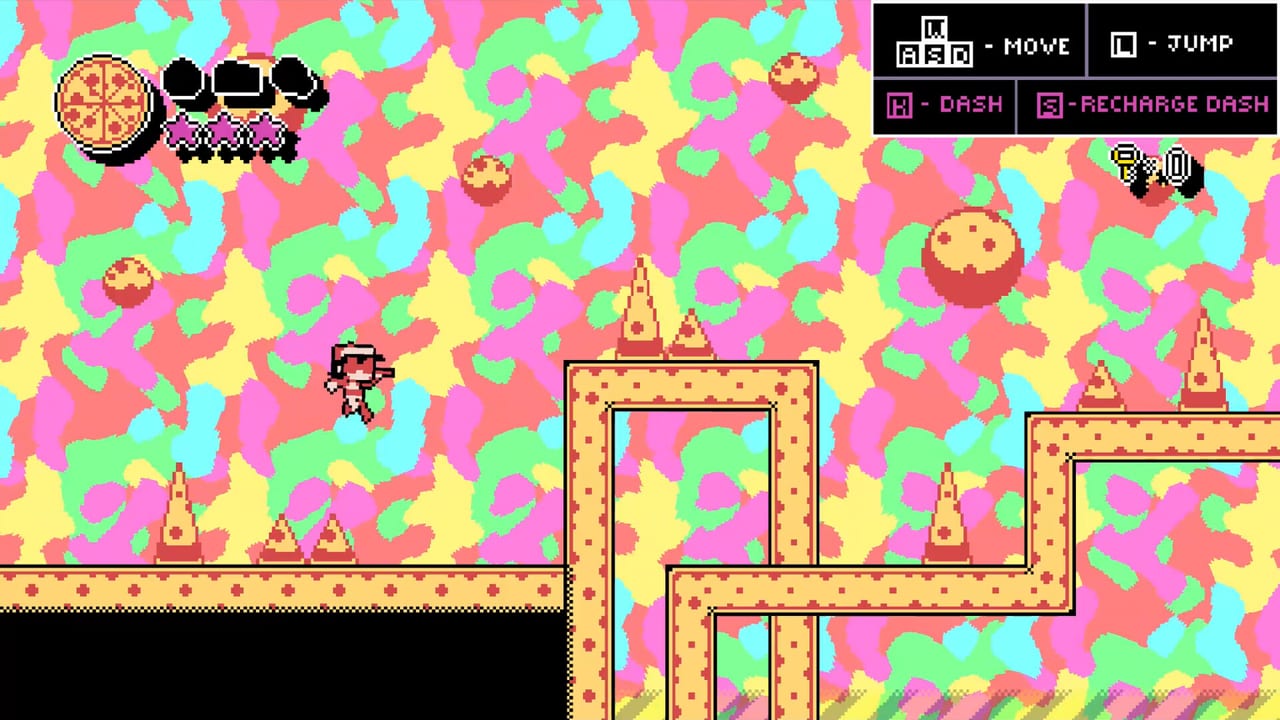
PizzaBoy is a precision platformer first. If the controls feel wrong, every wall bounce and pizza save becomes harder than it needs to be. This page documents the publicly shared default bindings from Breadless’s demo materials, explains why recharge and interact share the vertical axis with movement, and turns community feedback—especially requests for arrow-plus-ZX style layouts—into a practical setup checklist before the August 14, 2026 Steam launch.
Pair this guide with Getting Started for install steps and the Air Dash Movement Guide once the buttons feel natural. If the game will not boot at all, jump to Launch Troubleshooting instead of remapping keys that never appear.
Default keyboard layout
Public demo control notes list several equivalent keys so players can stay on WASD or migrate toward an arcade-style cluster:
| Action | Primary keys |
|---|---|
| Move | WASD or Arrow Keys |
| Jump | L, Z, or Space |
| Dash (air-dash) | K, X, or Shift |
| Recharge dash | S or Down |
| Interact | W or Up |
That means the same vertical keys that move you also recharge and interact. In a calm room this is fine. On a spike clock, it is easy to press Down to recharge and accidentally drop a ledge, or press Up to talk and climb into a hazard. Expect that dual use and practice intentional taps.
Why players ask for arrows and ZX
On the itch.io demo comments, players asked for an arrows-plus-ZX layout closer to classic precision platformers. Breadless replied that a toggle between control styles was planned. Treat that as developer intent, not a guarantee of a specific menu name in the 1.0 build. On launch day, open the options menu and check for:
- Control style presets
- Per-action rebinding
- Separate keyboard vs controller profiles
Until a toggle ships, the dual-bind table above already lets many players approximate ZX habits: arrows for movement, Z for jump, X for dash, Down for recharge.
Controller support
Steam lists full controller support. PizzaBoy’s air-dash wall work often feels cleaner on a pad because face buttons separate jump and dash from the stick. Recommended mental map:
- Left stick or D-pad: move
- South / East face buttons: jump and dash (swap if you prefer)
- Down on D-pad or a shoulder: recharge if the build exposes it that way
- Up / interact button: talk to NPCs and triggers
Calibrate deadzones if micro-adjustments near pizza thieves feel sticky. Full controller support does not mean every third-party pad maps perfectly—Steam Input can help when a generic pad mislabels buttons.
Practice drill before your first delivery
- Stand in a safe tutorial strip and tap jump without moving.
- Jump, then dash at the peak; land; recharge on purpose.
- Wall-bounce twice without touching a monster.
- Walk past an NPC, interact once, cancel movement so you do not climb into spikes.
- Repeat the loop until recharge is a deliberate press, not a panic mash.
When that drill is boring, you are ready for Protect Pizza Delivery pressure rooms.
Common control mistakes
- Holding Down to “charge forever” while standing on a thin ledge.
- Binding jump and dash to the same finger cluster without resting between inputs.
- Using a keyboard for story segments then switching to a cold pad mid-boss without relearning spacing.
- Ignoring Steam’s Big Picture binding tools when a pad reports wrong faces.
Accessibility-adjacent notes
Community posts have asked about screen shake intensity. If launch options include camera shake, motion reduction, or vibration toggles, set them before long sessions. This wiki will not invent a setting that is not shown in your build—open Options and photograph the menu if you need to compare versions. For hazard philosophy and instant-death pits, see Hazard Rooms Tips.
How controls connect to the rest of the wiki
- First install and demo path → Getting Started
- Dash timing theory → Air Dash Movement
- Visual demo routes → How to Play the Demo (includes the verified walkthrough video)
- Launch boot failures → Launch Troubleshooting
- Specs floor → System Requirements
Launch-week checklist
Wishlist PizzaBoy on Steam, install the demo, lock a keyboard or pad layout you can repeat under stress, then chase a clean delivery. Controls are not a side topic for PizzaBoy—they are the product. A comfortable bind set is the difference between a funny pizza story and a rage-quit on the first scooter ramp.
Frequently Asked Questions
Quick answers to the most common questions.
What are the default PizzaBoy keyboard controls?
Move with WASD or arrows; jump with L, Z, or Space; dash with K, X, or Shift; recharge with S or Down; interact with W or Up.
Does PizzaBoy support controllers?
Yes. Steam lists full controller support. Many players prefer a pad for air-dash wall sequences.
Can I switch to an arrows and ZX layout?
Players requested that style and Breadless mentioned a planned toggle. Check Options at launch, or approximate ZX using the dual default binds.
Why do recharge and interact share movement keys?
Demo notes map recharge to S/Down and interact to W/Up. Practice deliberate taps so you do not drop ledges while managing dash stamina.